What's new ·
Two-step verification for login
How to install an authenticator app, enable two-step verification in My profile, and log in with the code. On your own computer, the code is remembered for 30 days.
By Lucas Marchon, Founder at BrainChat
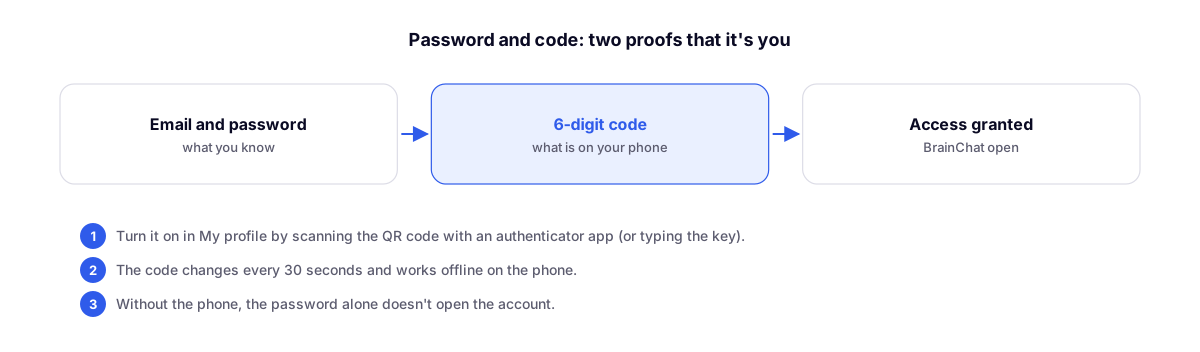
A password on its own is a door with only one lock: if someone finds it out, they get in. With two-step verification, BrainChat asks for a second proof of identity at login: a 6-digit code generated by an app on your phone. Anyone who knows your password but doesn't have your phone cannot get in.
It is available to everyone starting today and takes about two minutes to set up.
1. Install an authenticator app
The code is generated by an authenticator app on your phone. Any of these work with BrainChat; choose one. The first three are free; 1Password is paid and is worth it if you already use the password manager.
| App | Android | iPhone | |
|---|---|---|---|
 | Google Authenticator | Google Play | App Store |
 | Microsoft Authenticator | Google Play | App Store |
 | Twilio Authy | Google Play | App Store |
 | 1Password | Google Play | App Store |
When in doubt, stick with Google Authenticator or Microsoft Authenticator: they are the simplest. Open the link on your phone, tap Install (Android) or Get (iPhone), and open the app once. If it asks you to sign in with an account, you can sign in or skip; it doesn't matter for BrainChat.
2. Enable it in BrainChat
Do this on your computer, with your phone in hand:
- Log into BrainChat and open My profile → Security.
- Under Two-step verification, click Enable. A QR code will appear, along with links to download Google Authenticator and Microsoft Authenticator.
- On your phone, open the authenticator app and tap + (or Add account) and then Scan QR code (or Scan). If it asks for camera access, allow it.
- Point your camera at the QR code on the screen. The app will create a new entry with a 6-digit number that changes automatically.
- Type the number currently showing in the app into BrainChat and confirm.
Done: the status changes to Enabled, with today's date. The app doesn't expire: it remains valid until you disable it or switch phones.
No camera, or setting it up from your phone directly? On the QR code screen, click View key to type. In the app, choose Enter setup key (or Type configuration key), give it a name (for example, BrainChat), paste or type the key, and follow from step 5.
3. How login works
On the sign-in screen, after your email and password, BrainChat will ask for the code. Open the app, find the BrainChat entry number, and type it. The number changes every 30 seconds; if it's about to change, wait for the next one.
| How you sign in | When the code is requested |
|---|---|
| Own computer | On the first login; after that, the computer is remembered for 30 days, even if you click Sign out |
| Shared computer | On every login |
Under My profile → Security, you can see how long this computer will be remembered. To require the code again on your very next login, use Forget this computer.
The app generates the code right on your phone: it works even without internet or signal.
If something goes wrong
- "Invalid code": check if you typed the number from the BrainChat entry (and not another account) and if it didn't change while you were typing. If it keeps happening, enable automatic date and time on your phone: the code relies on the clock being correct.
- Switching phones: before resetting or handing over your old device, use the app's built-in transfer or backup feature (Google Authenticator and Microsoft Authenticator copy accounts to the new phone). Another option: click Disable in My profile → Security and enable it again using your new phone.
- Lost your phone or deleted the app: contact support. After confirming your identity, we will remove verification from your account so you can set it up again.
How to disable
In My profile → Security, under two-step verification, click Disable. Login will go back to asking only for your email and password. We recommend keeping it enabled.
Quick questions
- Is it mandatory? No. Everyone decides whether to enable it in My profile.
- Do I need a separate app just for BrainChat? No. The same app stores codes for multiple accounts (email, bank, social media), each on its own line.
- Does the code arrive via SMS or email? No. It is generated inside the app, which is safer: no one can intercept it.
- Will anyone from BrainChat ask for my code? Never. Do not share your code with anyone, not even by phone or WhatsApp.
Login is also more practical
- Your browser can now save and autofill your email and password on the sign-in screen.
- On your Own computer, BrainChat remembers your email for next time. On a Shared computer, it stores nothing.
Complementary features
- Sign in with passkey: fingerprint, Face ID, or PIN, no password: the next step to log in without a password or code.
- Login for own or shared computer: the two ways to sign in, which now determine when the code is requested.
- Team with permissions by area: each person only sees what they are authorized to see, and with verification, no one can log in as them.