What's new ·
Report an issue straight from the screen
A header button submits the ticket with the screen and context already filled in, and accepts attachments.
By Lucas Marchon, Founder at BrainChat
Reporting an issue via message almost always starts with questions: which screen? Which channel? Can you send a screenshot? The Report issue button answers all of that before you even type.
How it works
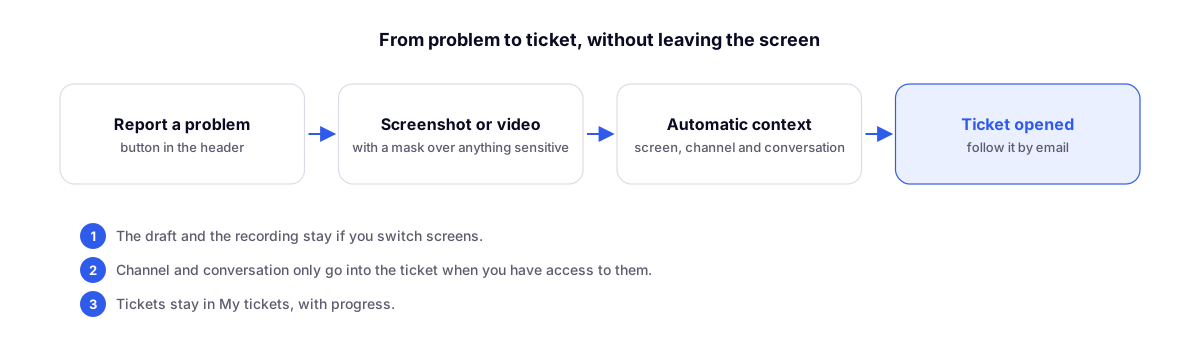
- Click Report issue in the header. It appears in the logged-in area, on the operator screen, and in the embedded chat.
- Describe what happened and attach a screenshot or record a screen video. On the screenshot, you can highlight the problem area and blur out anything sensitive.
- The ticket automatically includes where you were: the screen, and the channel and conversation when you have access to them.
- Send it. You can track progress in My tickets and receive updates via email.
Your draft and recording are saved even if you switch screens while writing the report.
What the ticket doesn't include
Customer data is not included by default. Channels and conversations are only added to the ticket when you have access to them, and triage is handled exclusively by the BrainChat team.
For requests regarding personal data (access, correction, deletion), please use the Trust Center.