What's new ·
Log in with a passkey: fingerprint, Face ID, or PIN, no password required
Register a passkey in My profile and log in to BrainChat using your fingerprint, Face ID, or computer PIN, without typing a password or code.
By Lucas Marchon, Founder at BrainChat
Now you can log in to BrainChat without typing a password: with a passkey, you confirm it's you using your fingerprint, Face ID, computer PIN, or a security key, the same way you unlock your phone.
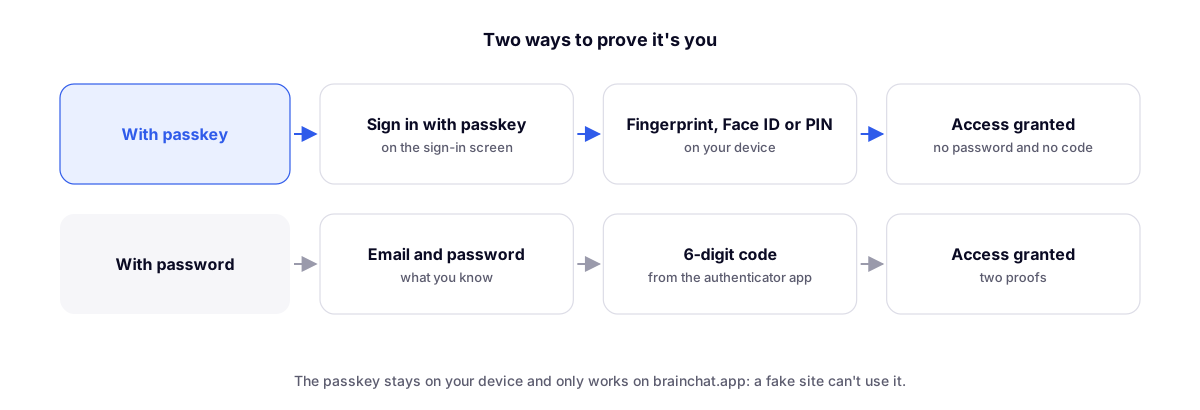
What is a passkey
It is an access key stored on your device (phone, computer, or password manager) and tied to the address brainchat.app. When logging in, your device asks for your fingerprint, face, or PIN and confirms to BrainChat that it's you.
- No password to forget, leak, or type incorrectly.
- Does not work on fake sites: the passkey only responds to brainchat.app, so a phishing link mimicking the login screen cannot use it.
- Acts as strong proof: anyone logging in with a passkey does not need to enter the authenticator app code.
Before you start: enable two-step verification
A passkey is the next step in account protection. Start with two-step verification: it protects email and password logins, which continue to exist as an alternative. With both enabled, your account is protected on both sides.
How to register
Do this on the device where you will use the passkey by opening brainchat.app (it is the only address where it works):
- Open My profile → Security.
- Under Passkeys, click Register passkey.
- With two-step verification enabled, BrainChat asks for the code from the authenticator app. Enter the code and click Register passkey again.
- The browser opens the passkey window. Confirm with your fingerprint, Face ID, computer PIN, or security key.
Done: the passkey appears in the list with the name of where it was stored (for example, Apple Passwords) and the date it was registered and last used.
Where the passkey is stored
Your passkey is stored by your device or password manager. The most common ones:
| Where it lives | How you confirm | |
|---|---|---|
 | Apple Passwords (iPhone, iPad, and Mac) | Face ID, Touch ID, or device passcode |
 | Google Password Manager (Android and Chrome) | Fingerprint, face, or screen lock |
 | Windows Hello (Windows computers) | Fingerprint, face, or Windows PIN |
 | 1Password | 1Password unlock |
 | Bitwarden | Bitwarden unlock |
You don't need to install anything new: your browser offers what already exists on your device. Use more than one device? Register a passkey on each one using Register another passkey.
How to log in
- On the login screen, click Log in with passkey.
- Confirm with your fingerprint, Face ID, or PIN.
On a Personal computer, after your first login with a passkey, the screen will show the passkey as the main option along with your email. To log in with another account, use Use email and password or Not you?.
| How you log in | What BrainChat asks for |
|---|---|
| Passkey | Only your fingerprint, Face ID, or device PIN |
| Email and password | Password and, with verification enabled, the app code |
If something goes wrong
- "This passkey is not registered": the passkey was deleted from your device or account. Log in with your email and password and register again in My profile.
- The button doesn't appear: check if you are on the brainchat.app address. The passkey does not work on other addresses.
- Switched or lost your device: log in with your email, password, and code, and remove the old passkey from the list (trash icon). If two-step verification is enabled, BrainChat will ask for the code before removing it.
Quick questions
- Does the password disappear? No. Email and password continue to work as an alternative.
- Does BrainChat receive my fingerprint or face? No. Your fingerprint and face stay on your device; BrainChat only receives confirmation that it was successful.
- Is it mandatory? No. It's an option to log in faster and more securely.
- Can I have more than one? Yes, one per device or password manager.
Related
- Two-step verification for login: the authenticator app code, the first step to protect your account.
- Login for personal or shared computers: the two ways to log in and what each one remembers.