What's new ·
Email: calendar invite in ticket, drafts, and campaign by contact, label, or table
Calendar invites received by email now show Accept, Maybe, and Decline and turn into tasks, tickets get an organization-specific number with a copyable link, and email campaigns let you pick recipients just like on WhatsApp.
By Lucas Marchon, Founder at BrainChat
A round of improvements for support agents and those sending email campaigns.
Calendar invite inside the ticket
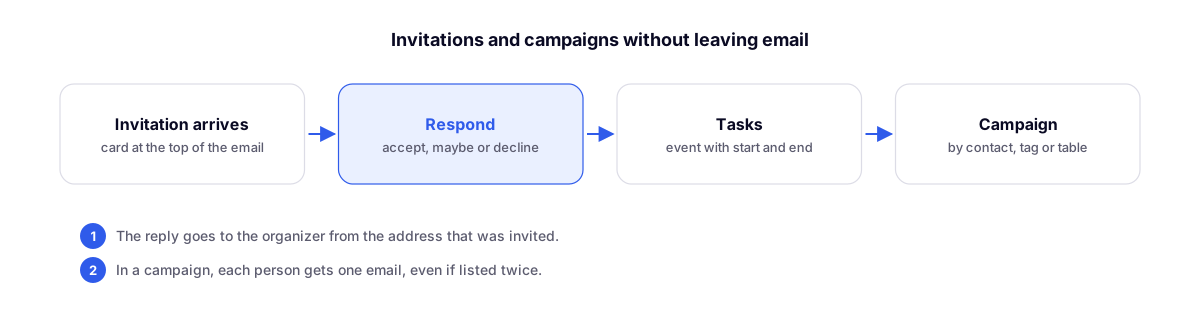
When a meeting invite arrives, it appears as the Calendar invite card at the top of the email, showing the date, location, meeting link, and organizer.
- Accept, Maybe, or Decline replies to the organizer using the invited organization address, and their calendar app records the response.
- Accepting or Maybe also adds the appointment to your Tasks, with a start and end time. Declining archives it.
- If the invite changes, the card shows Updated and asks for a response again. If canceled, it shows Canceled.
Ticket number and link
The ticket number is now sequential and specific to the organization. Click the number to copy the ticket link and send it to a colleague. Anyone without access will just see that the ticket was not found.
Writing and drafts
- There is always a line to type above the signature.
- Save draft saves recipients, subject, text, and attachments. Drafts for new emails are in Drafts, next to New email, and reply drafts stay in the ticket itself. The draft is yours alone and is deleted upon sending.
- In the recipients list, organization addresses appear first, labeled as Personal or Team inbox.
- A team inbox, like sales@ or support@, sends replies using the inbox name and address, not the details of the person who wrote it.
- Avatars show both the contact's photo and the photo of the person who replied.
Email campaigns just like on WhatsApp
In Broadcasts, email campaigns use the same editor as WhatsApp messages, featuring Recipients, Content, and Scheduling tabs, with a live preview on the side.
- Choose recipients By Contact, By Label, or By Table: the entire table or a saved view, along with the email field.
- Before adding them, you can see how many are ready, how many are duplicates, and how many don't have a valid email. Each person receives only one email, and anyone who unsubscribed is left out.
- The scheduling date and time are in a single picker, identical for WhatsApp and email, with the timezone clearly visible.
- WhatsApp metrics in Broadcasts now include sends made through Flow.
Related
- Broadcasts: sends, templates, metrics, and logs on a single page: where campaigns are located.
- Email in Conversations: distribution, portfolio, departments, and alerts: email as a support channel.