What's new ·
Email in Conversations: distribution, portfolio, departments, and alerts
Conversations email now has its own settings: distribution, portfolio by client or domain, tickets by department, and alerts with sound, notification, and a menu counter.
By Lucas Marchon, Founder at BrainChat
Email support in Conversations now features the same organization tools as WhatsApp. Settings are found under the Conversations gear icon: choose Email in the WhatsApp | Email selector. Only organization leaders can see these settings.
Distribution
In the Distribution tab, you define:
- Only agents who are online receive tickets, with the option to allow offline agents when nobody is online;
- a limit of open tickets per person;
- the round-robin rotation among agents.
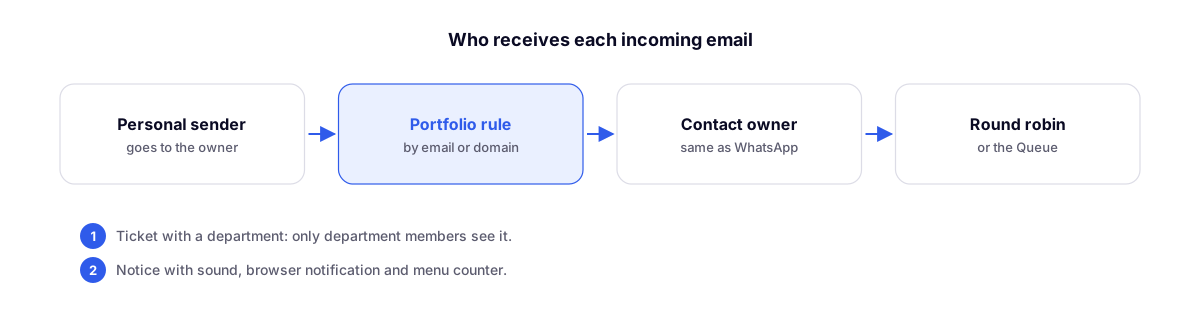
The order used to decide who receives a new email is: personal sender owner, portfolio rule, contact's portfolio owner, round-robin, and finally, the Queue.
Portfolio by client or domain
In the Portfolio tab, create portfolio rules by client email or client domain (for example, all emails from @empresa.com.br), pointing to a person, a department, or both. With Use the contact's portfolio owner, the email goes to the agent who already handles that client on WhatsApp. The Test button shows who would receive a given address.
Email by department
- Tickets with a department only appear for department members, the supervisor, the person who opened the ticket, and leadership. A department with no members does not restrict access.
- Senders with a department can only be used by department members, and the compose screen only lists permitted senders.
- New tickets start in the sender's department. Attachments and delivery events follow the same rule.
New email alerts
In the Notifications tab:
- Alert when email arrives, with sound (Ding or Chime tone, more noticeable);
- For which tickets: mine and unassigned (default), only mine, or all tickets the agent can see;
- browser notifications for "New email" and "Email ticket assigned to you", on any BrainChat screen.
The Email menu item shows how many of your tickets or unassigned tickets have unread messages while you are away from the email inbox.
Related
- Email in documentation: step-by-step instructions in the documentation.
- Email templates with themes, branding, and review: the new editor for campaigns and templates.
- Broadcasts: volume sending for WhatsApp and email.