What's new ·
Team scheduling: round robin, collective meetings, organization page and team calendar
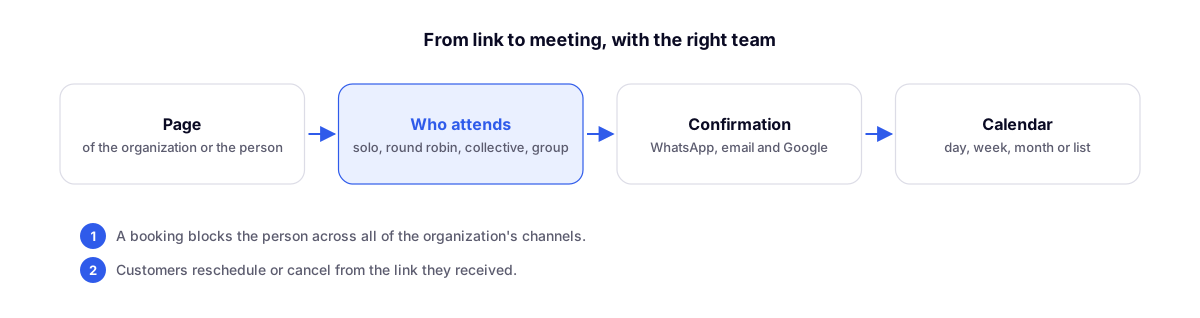
The Calendar now belongs to the organization: each event type defines who attends (individual, round-robin, collective, or class), the organization gets a page with all links, and the calendar shows the team by day, week, month, or list.
By Lucas Marchon, Founder at BrainChat
Scheduling is no longer just an individual link for each person: it now organizes schedules for the entire team. The client chooses the meeting type, BrainChat finds who is available, and everyone receives confirmation.
Everything is located under Capture → Agenda, in the Event types, Calendar, Appointments, Organization page, Availability, and Connections tabs.
Who attends
Each event type opens on its own page, with Basic, Who attends, Duration and times, Location, Questions, Notifications, and Appearance tabs. Under Who attends, choose the format:
| Format | How it works |
|---|---|
| Individual | One person attends to one client per time slot. Can also be set to Company (no person defined). |
| Round-robin | The client picks the time slot and the meeting goes to whoever is available, one by one, in list order. |
| Collective | Only time slots where all selected people are available appear, and everyone joins the meeting. |
| Class | Multiple clients at the same time slot, with a limit on Spots per time slot. |
The location can be Video call (Google Meet), Phone, WhatsApp, In-person, or Custom link.
Availability for each person, across the entire organization
A booking blocks the person across all channels in the organization, so no one gets double-booked at the same time. Each person connects their own Google account under Connections, and their calendar blocks only them.
Organization page
In the Organization page tab, you publish a page with all meeting types and, if you want, the team with each person's link. Just set the Address, a title, and an intro text.
Confirmation, reminders, and rescheduling
- In the Notifications tab, confirmation is sent via WhatsApp, using the page channel's number, via email, with the invitation, and as a Google Calendar invite.
- Reminders can be sent 24 hours, 3 hours, 1 hour, or 15 minutes before.
- In WhatsApp templates, choose an approved template for confirmation and another for reminders, including name, meeting, date, time, location, attendee, and the rescheduling link.
- The client reschedules or cancels through the link they received. The meeting also updates in Google.
- Appointment details show the delivery status of each notification, and the reason if any fail.
Team calendar
The Calendar tab shows meetings by Day, Week, Month, or List:
- By person, for the day, with a column for each person;
- Filters by person (including Only me), event type, channel, and status (confirmed, canceled, and rescheduled);
- guest search;
- click an empty time slot to schedule, or drag a meeting to reschedule (the guest is notified).
Meetings you attend also appear in your Tasks calendar, now with a start and end time.
Good to know
- The Calendar depends on the organization plan and the Calendar permission for each person.
- To create the first link, set up a schedule grid under Availability.
- Cancellation and rescheduling notify the client on WhatsApp with text, without a template. On the WhatsApp API, this notification only arrives if the conversation with the client has been open in the last 24 hours. Email always arrives.
Further reading
- Calendar: scheduling pages for each team member: the first version, with each person's link.
- My space: notes, tasks, and team internal chat: where Tasks are located, which now display meetings.