What's new ·
Email: signature with banner, auto-reply, and AI-suggested response
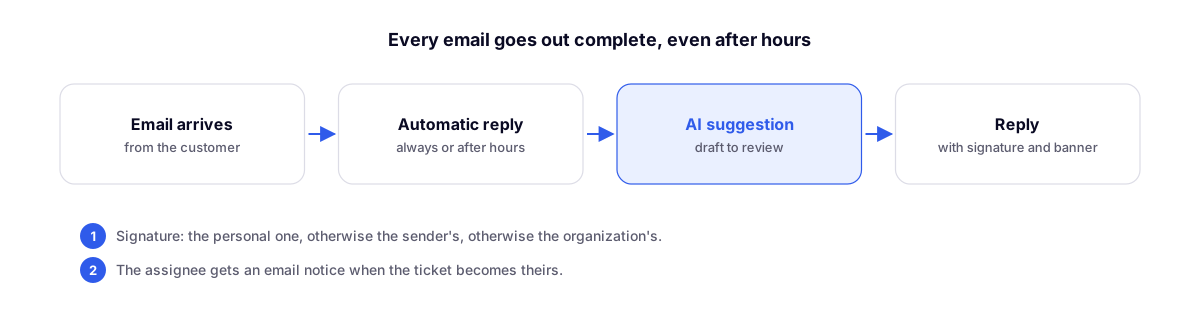
Each person has their own signature, the company sets banner rules, customers receive an auto-reply outside of business hours, and AI suggests a draft response.
By Lucas Marchon, Founder at BrainChat
Conversations email now has what the team was missing to reply with a professional corporate look, even when no one is online.
Individual signatures
In the composer, My signature opens the Classic, With photo, and Color bar templates, featuring job title, phone, and photo (PNG, JPG, or GIF up to 2 MB). The personal signature takes precedence; if unavailable, the sender's signature is used; if none, the organization's signature applies. Leadership decides in the Signatures tab of the email settings whether each person can have their own.
Company banners
In Company banners, leadership registers images with links to appear at the end of emails based on rules: new emails only, replies only, or both; within a period; by sender; or by department. Up to two banners per email. The sender cannot remove the banner.
Auto-reply
In the Auto-reply tab, turn on Reply automatically and choose Outside business hours or Always:
- also on customer replies, if desired;
- with a minimum interval on the same ticket (default is 24 hours) to avoid repeating;
- only on certain addresses, if preferred;
- with variables like
{{contato.nome}}and{{chamado.numero}}.
The reply goes out in the same customer email thread, marked as Auto-reply, and does not change the ticket status. It never replies to automated emails, mailing lists, "no-reply" addresses, or the organization's own domain.
Email notification to the assignee
In Notifications, the assignee receives an email when a ticket is assigned to them (enabled by default) and, if preferred, when the customer replies to one of their tickets (at most one notification every 30 minutes per ticket). Team members stay informed even if they don't have the screen open.
AI-suggested response
When replying, Suggest response with AI reads the latest messages in the ticket and writes a draft in Standard, Formal, Friendly, or Short tone, with an optional prompt. If you've already written something, the button changes to Improve my text. The AI never sends anything: the draft is left for you to review. It uses the organization's AI credits.
Related
- Email: personal inbox, SLAs, merging tickets, and metrics: the other part of this email release.
- Email in Conversations: distribution, portfolio, departments, and notifications: the previous release.