What's new ·
Redesigned Kanban: colored due dates, unread message indicators, and card actions
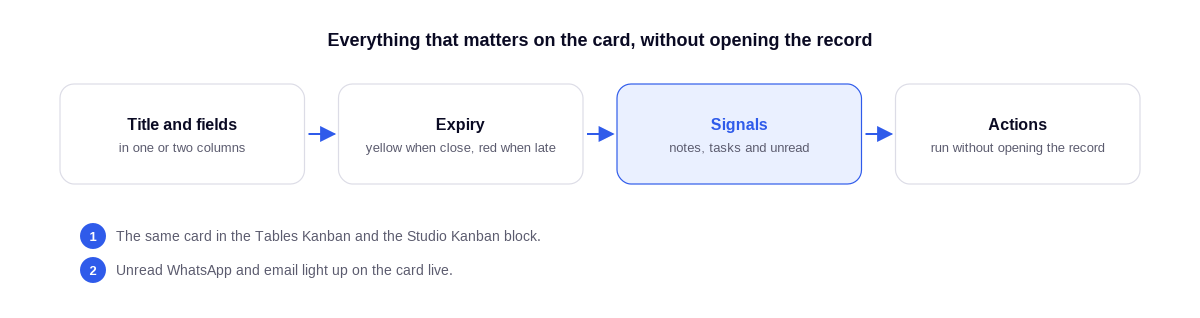
The Kanban card highlights what matters without opening the record: fields in one or two columns, yellow or red due dates, notes, tasks, live unread WhatsApp and email messages, connected records, and stage actions.
By Lucas Marchon, Founder at BrainChat
The Kanban card has a fresh design, shared by the Kanban in Tables and the Kanban block in Studios. The idea is to glance at the board and instantly know what needs attention, without opening records one by one.
Fields in the right place
Under View options, in the Card layout section, choose the Visible fields on card. The first one becomes the title; the others appear in one or two columns, and empty fields take up no space. For each field, choose where it appears: Label, Field, Footer, or Hidden. In automatic mode, labels turn into colored chips, and the assignee, value, and attachments go to the footer.
In Studios, Save as widget default applies to everyone who opens the dashboard.
Color-coded due dates
A due date, deadline, or delivery date becomes the card's due date:
- yellow when a few days are left (2 by default, adjustable) and on the day itself: "Due in 2 days", "Due today";
- red when past due: "3 days late".
Days are counted in the organization's time zone.
Indicators in the footer
The footer shows, for the logged-in user:
- Open Notes and Tasks (in red when there is an overdue task);
- Live Unread WhatsApp and Unread email, based on the record's phone number and email: the dot lights up when a message arrives and turns off when someone reads it;
- Connected records: hover over to see the list, grouped by table.
Each person only sees the notes, conversations, and emails they have access to, and each indicator can be turned off under Footer indicators.
Actions without opening the record sheet
The lightning bolt button on the card opens Actions in this stage: actions configured in the table for the current stage, such as Update fields, Create record, and Run flow, following the same rules as the record sheet.
More
- Tables with over 2,000 records use the same card, loading 30 per column with show more; counts and totals apply to the entire column.
- In the record sheet, clicking a stage in the top bar opens that stage's fields without changing the stage. To advance, use Move to....
- Under Table settings → Table icon, choose an icon and color for the table, which appear in the list, Studio, and Flow.
Related
- Kanban in Studios and real-time updated dashboards: Kanban from the beginning.
- Redesigned record sheet, with arrow stages and conversation in the center: the sheet that the card opens.