Guides ·
How to set up your team's scheduling with round robin and WhatsApp reminders
Step-by-step guide to setting up your team's online scheduling: time slots, meeting type, assigned staff, confirmation and WhatsApp reminders, and your organization's page.
By Lucas Marchon, Founder at BrainChat
Scheduling meetings via messaging is expensive: "Tuesday at 10 AM works?", "No, how about Wednesday?", and the customer cools off in the middle of the conversation. A scheduling link solves this, but in a team, another question arises: who takes the meeting?
This guide shows you how to set up your team calendar in BrainChat, from the first time slot to the WhatsApp reminder, in about 15 minutes.
Before you start
- The Calendar is located in Capture → Calendar and depends on your organization's plan.
- Each person who will take meetings needs the Calendar permission.
- If the team uses Google Calendar, each person connects their own account in Connections. This way, personal appointments will automatically block their available slots.
1. Set everyone's working hours
In the Availability tab, click New and build the schedule: days of the week and time ranges. Check Make default on the main schedule. Without a schedule, you cannot create the link.
Tip: start with the standard weekly schedule and create others only when needed, such as extended hours for campaign days.
2. Create the meeting type
In the Event types tab, create a type for each conversation you offer: "30-minute demonstration", "Technical visit", "First consultation". In Duration and times, define the meeting length and notice rules. In Location, choose Google Meet, phone, WhatsApp, in-person, or a custom link.
3. Choose who takes the meetings
This is the part that changes everything for a team. In Assigned staff:
| If you want... | Use |
|---|---|
| Each customer to always talk to the same person | Individual |
| To distribute meetings among the team in order | Rotation |
| To bring two or more people together with the customer, such as sales and tech | Collective |
| To serve multiple customers at the same time, like a training session | Class |
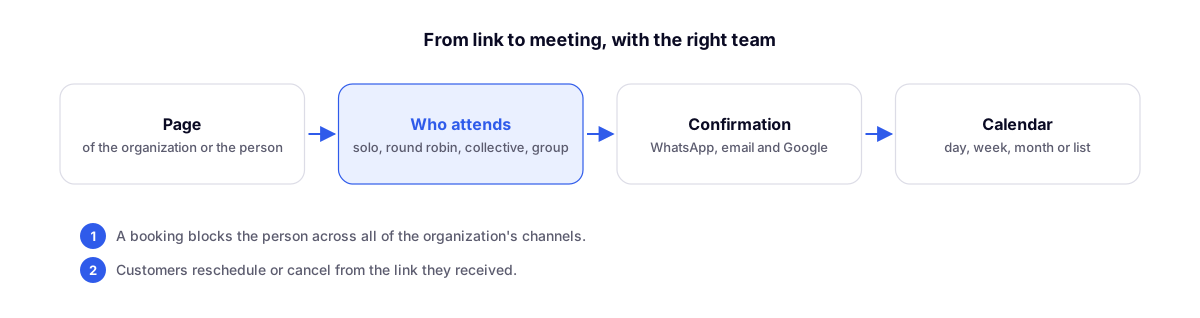
In rotation, the customer sees all times when at least one person is free, and the meeting goes to the next available person on the list. In collective, only the times when everyone is free appear.
4. Set up confirmation and reminders
In the Notifications tab:
- Turn on confirmation via WhatsApp, email, and Google Calendar invite.
- In Reminders, choose when to send notifications: 24 hours, 3 hours, 1 hour, or 15 minutes before.
- In WhatsApp templates, choose an approved template for confirmation and another for reminders. They accept name, meeting, date, time, location, assigned staff, and the reschedule link.
Reminders are what reduce no-shows the most: a notice 24 hours before and another 1 hour before are usually enough. With the reschedule link in the reminder, anyone who can't make it can notify you and free up the slot instead of simply not showing up.
5. Publish your organization's page
In the Organization page tab, set the URL and an introduction text. The page brings together all meeting types and, if you want, the team with each person's link. Put the link:
- in your Instagram bio and Link in Bio;
- in your team's email signatures;
- in your WhatsApp auto-reply;
- on your landing page buttons.
6. Track via the calendar
The Calendar tab shows meetings by day, week, month, or list. On the day view, the By person view shows a column for each team member. To book a client, click an empty slot. To reschedule, drag the meeting: the client is notified.
Quick questions
- Can the customer reschedule on their own? Yes, via the link they receive in the confirmation, with Reschedule and Cancel.
- What if someone books a personal appointment on Google? If the person connected Google, that slot is removed from their calendar, and theirs alone.
- Can a meeting block the same person across two WhatsApp numbers? No: the booking blocks the person across the entire organization.
- Do I need Google? No. Without it, the invite is sent by email and works on any calendar.
Read also
- Team calendar: rotation, collective meeting, organization page, and team calendar: everything that changed in Calendar.
- Flow: ready-made journeys, review before publishing and run now: to continue the customer journey after the meeting.